
How to Play Fields of Mistria Multiplayer With a Mod
Use the unofficial community Mod only with matching versions, a separate save backup, and a relay connection you understand and control.
Direct answer
Fields of Mistria is officially single-player, but an unofficial community Mod can connect a host and joining players. Install the Mod with MOMI, run the author's relay, and keep the game, installer, and Mod versions aligned on every computer. Back up each save before connecting. This setup is not split-screen, and some world progression may not stay synchronized.
Quick facts
- Official mode
- Single-player
- Multiplayer route
- Unofficial community Mod
- Installer
- MOMI 0.15.5
- Connection
- External relay required
- Split-screen
- Not supported
- Checked
- 2026-08-17
Understand what this multiplayer setup is
Fields of Mistria remains officially single-player. This community Mod adds an experimental host-and-client connection through MOMI and a separate relay; it is not an official server, local co-op mode, or split-screen feature.
This guide keeps the complete setup on one page. The two download buttons lead to the original maintainers so you can obtain current files, while every installation, Host, Join, connection check, and recovery step is explained below.
Check the current compatibility snapshot
This setup was reviewed on 2026-08-17 for game patch 1.0.3, MOMI 0.15.5, and the Multiplayer Mod changelog 4.1. Treat those values as one matched set, not a promise that later releases will remain compatible.
Before opening a save, compare the game build, MOMI release, Mod file, relay executable, and dependencies on every computer. If one value differs, update or roll back the whole group first.
Back up saves and align every computer
Copy each participating save outside the game and Mod folders. Keep one untouched backup from before multiplayer and use a second copied save for the first connection, disconnect, reload, and recovery test.
- Copy every save to a folder outside the Fields of Mistria installation.
- Keep one pre-multiplayer backup untouched.
- Use a disposable or copied save for the first session.
- Match game 1.0.3, MOMI 0.15.5, Mod 4.1, relay, and dependencies on every computer.
- Choose the Host world and each Join character before connecting.
Create the correct Mod folder
On Windows, create a mods folder beside FieldsOfMistria.exe. On Steam Deck or Linux, MOMI accepts either a mods folder inside the game directory or the home-folder location shown in the table.
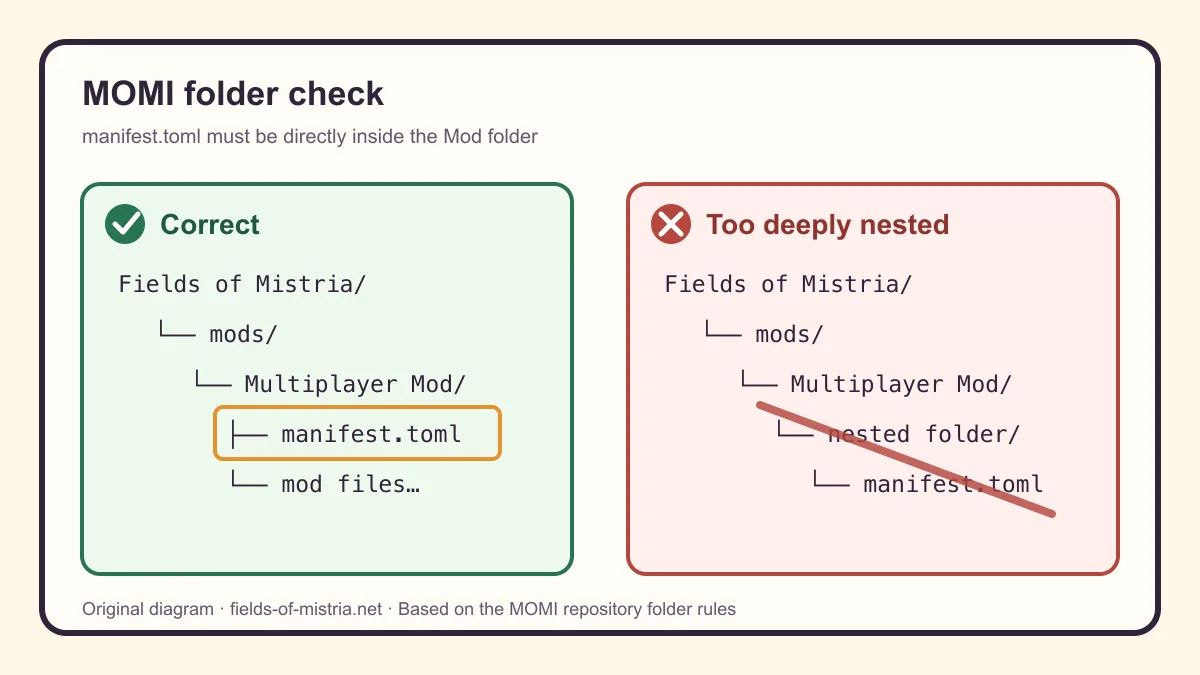
After extracting the Mod, manifest.toml must sit directly inside the Mod's own folder. An extra wrapper folder is the most common reason MOMI does not list the Mod.
| System | When to use it | Folder |
|---|---|---|
| Windows | Standard Steam installation | Fields of Mistria/mods/ next to FieldsOfMistria.exe |
| Steam Deck / Linux | Game-folder option | Fields of Mistria/mods/ inside the game folder |
| Steam Deck / Linux | Home-folder option | ~/mistria-mods/ in the Steam Deck or Linux home directory |
Install MOMI and the Multiplayer Mod
Download MOMI from its GitHub Releases page and the Multiplayer Mod from the author's Nexus page. Do not use repacked mirrors: update notes and required files can change with each game patch.
The relay executable may be supplied or linked by the current Mod package. If the author page does not identify a compatible relay build, stop instead of substituting an unofficial mirror.
- Create the correct mods folder for the operating system.
- Download and extract MOMI; if Windows detection fails, place the installer beside Maybe.toml.
- Extract the Multiplayer Mod archive—MOMI does not load a .zip file as an installed Mod.
- Confirm the structure is mods/Multiplayer Mod/manifest.toml, without another Multiplayer Mod folder in between.
- Open MOMI, select the Multiplayer Mod in its list, and choose Install.
- After every game update, run MOMI again only after the Mod's compatible release is available.
Choose how the relay will run
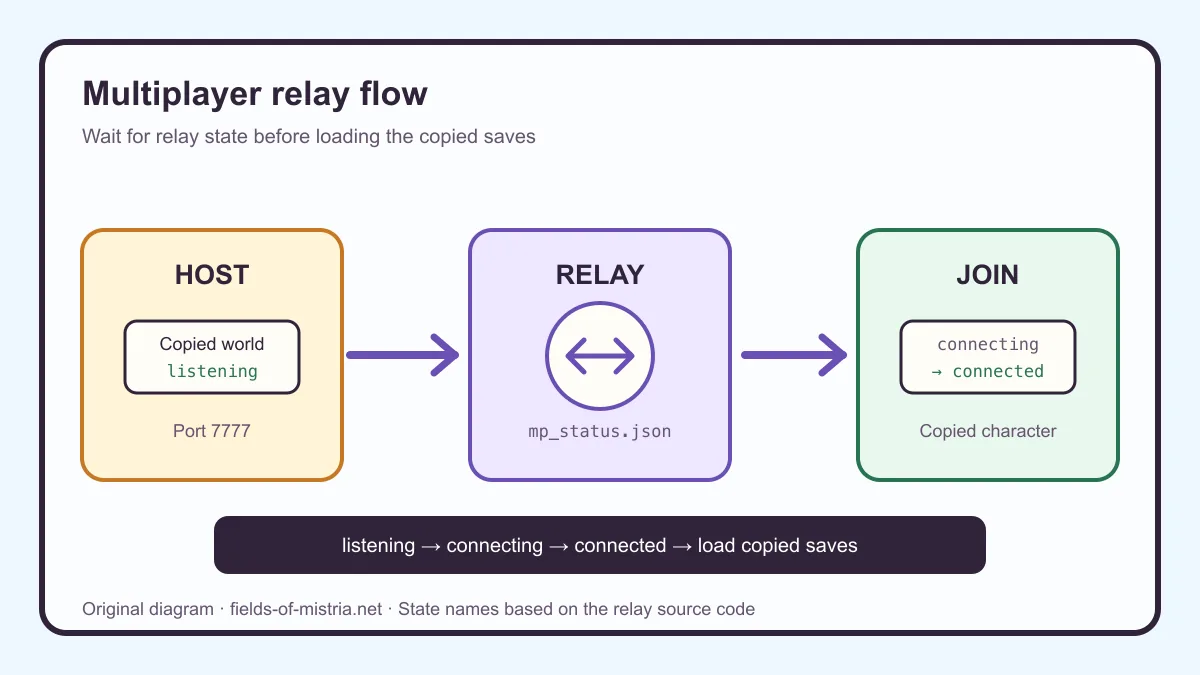
The relay carries the connection between Host and Join clients. Its default port is 7777. Double-clicking it runs Auto mode, which follows the Host or Join choice written by the game's Multiplayer settings to mp_control.json.
Manual Host and Join modes ignore the in-game role selector. Use them only when you deliberately start the exact commands in the table. Status is reported through mp_status.json in %LocalAppData%/FieldsOfMistria/momi_mp/.
| Mode | Command | Use |
|---|---|---|
| Auto (recommended) | MomiMpRelay auto [--port N] [--dir <path>] | Follows Host or Join selected in the game settings. |
| Manual Host | MomiMpRelay host [--port N] [--dir <path>] | Starts a Host directly and ignores the in-game role choice. |
| Manual Join | MomiMpRelay join <ip> [--port N] [--dir <path>] | Connects directly to a reachable Host address. |
Host a copied world
Start with a copied world and wait for the relay to become ready before inviting anyone. The Host supplies the shared world snapshot when the first client connects.
- Close extra game and relay instances.
- In Auto mode, open Settings › Multiplayer and select Host; otherwise run MomiMpRelay host [--port N] [--dir <path>].
- Keep the default port 7777 unless every participant uses the same replacement.
- Wait for the relay console to show [HOST] Listening on :7777 or an equivalent listening state in mp_status.json.
- Load the copied Host world, wait for a stable scene, and record the date, location, and quest state.
- Share only the reachable Host address and chosen port with the intended player.
Join with a separate character save
A joining player needs the same files and a separate copied character save. The address must lead to the Host through a network path both players understand and control.
- Install the same game, MOMI, Mod, relay, and dependency versions as the Host.
- Start from a copied character save, not the only copy of a long-running character.
- In Auto mode, select Join in Settings › Multiplayer and enter the Host address and port.
- For manual mode, run MomiMpRelay join <ip> [--port N] [--dir <path>] with the reachable Host address.
- Wait for connecting to become connected or for the console to show [CLIENT] Connected! before loading the session.
- If connection never completes, stop and use the troubleshooting table without changing the save.
Confirm the connection before playing
Do not treat a running relay window as proof that the session works. Confirm both relay state and a short in-game round trip before continuing a valuable farm.
- Host status says listening before the Join client starts.
- Join status changes from connecting to connected.
- Both players can move and see the expected location.
- A simple inventory action and one area transition appear consistently.
- Both players save, exit, reconnect, and reload the copied saves successfully.
- Quest gates and world paths match before story progress continues.
Know the boundary between LAN and remote play
A same-LAN session can use a reachable local Host address. Remote play additionally depends on the Host's router, operating system, and network policy; the relay cannot make an unreachable computer public by itself.
Use a network path you already administer. This guide does not recommend disabling firewall or antivirus protection, and it does not prescribe one VPN or generic port-forwarding rule for every router.
Plan around sync limits and no split-screen
Some story-controlled world states are not synchronized. The documented Summit stairs example may remain locked for a new client until that character completes the relevant events. Stop if players see different quest gates, objects, or paths.
Running two instances on one computer still creates two independent clients; it does not become split-screen. A game patch, engine migration, MOMI update, Mod update, or relay change can also break a previously working set.
Fix the most common setup failures
Work from the first failed checkpoint rather than reinstalling everything at once. Preserve the copied saves and change only one variable between attempts.
| Symptom | Likely cause | Next action |
|---|---|---|
| MOMI cannot find the game | Automatic detection missed the installation | Place the MOMI installer beside Maybe.toml and reopen it. |
| The Mod is absent from MOMI | Archive not extracted or manifest.toml is nested | Extract it and move the Mod folder until manifest.toml is directly inside it. |
| The Mod disappears after a patch | The game update replaced installed changes | Confirm compatibility, then run the matching MOMI installer again. |
| The game says Relay off | Relay is not running or mp_status.json is absent | Start Auto mode first and confirm the relay data folder is writable. |
| Join remains connecting | Address, port, network reachability, or version mismatch | Recheck the reachable Host address, port 7777, and every version before retrying. |
| Players see different world states | That story or progression state is not synchronized | Stop progression, preserve both saves, and complete the required event on the affected character. |
| A save behaves incorrectly after disconnect | Session state or Mod files may be inconsistent | Close all clients, preserve the save, test a clean copied client, then restore the backup if needed. |
Remove the Mod and recover safely
Close the game and relay before changing files. Recovery is safest when you preserve the failed session separately, restore a clean client, and only then decide whether the copied multiplayer save is usable.
- Stop the relay and close every game instance.
- Copy the affected saves aside; do not overwrite the untouched backup.
- Remove or disable the Multiplayer Mod through MOMI, then restore clean game files through Steam if needed.
- Launch a copied save without Mods to separate a save problem from a Mod or relay problem.
- If the clean client works, reinstall one matched dependency at a time.
- If the save remains inconsistent, restore the untouched pre-multiplayer backup.
REFERENCE NOTES
Sources and notes
Dates, platforms, and version details can be checked in the official references; character, gift, item, and route notes are organized here.
View sources
- Official referenceSteam store Reference for the current platform, version, localization, and feature status.
- Official referenceSteam store Reference for the current platform, version, localization, and feature status.
- Official referenceOfficial Fields of Mistria source Reference for the current platform, version, localization, and feature status.
- Tool referenceFields of Mistria Multiplayer Mod — Nexus Mods Reference for the current platform, version, localization, and feature status.
- Tool referenceMods of Mistria Installer — GitHub Reference for the current platform, version, localization, and feature status.
- Tool referenceMods of Mistria Installer releases — GitHub Reference for the current platform, version, localization, and feature status.
- Tool referenceLinked reference Reference for the current platform, version, localization, and feature status.
- Tool referenceFields of Multiplayer Relay Program.cs — GitHub Reference for the current platform, version, localization, and feature status.
- Tool referenceLinked reference Reference for the current platform, version, localization, and feature status.