
Wall decorations: place and remove them
Make a wall map, crystal string lights or a bat garland, check keyboard and controller bindings, and use the pickaxe to rearrange furniture and clear access.
Direct answer
Obtain a wall item or learn its crafting recipe, equip it and use its placement preview against an open wall. Check the Move Furniture and Rotate actions for your controls. Remove placed furniture with the pickaxe, pick it up and place it again; a wall object is different from wallpaper.
Quick facts
- Version
- 1.0.5
- Updated
- 2026-09-23
- Remove furniture
- Hit with a pickaxe
- Controller positioning
- Right stick
Choose one item you can actually obtain
Recipes and finished furniture are different rewards. Read a recipe scroll before looking for the item at a woodcrafting bench. The three examples below offer clear goals; a picture of another player’s room does not tell you which variants or mods they used.
| Item | Unlock | Crafting |
|---|---|---|
| Mistria Wall Map | Town Rank 32 | Paper ×20 + Monster Powder ×5; Woodcrafting 10; 20 minutes |
| Crystal Wall String Lights | 18 Archaeology Wing sets | Crystal ×3 + Monster Core ×3 + Essence Drop ×3; Woodcrafting 20; 30 minutes |
| Essence Bat Garland | Stillwell: Essence Gone Batty | Paper ×10 + Monster Wing ×5; Woodcrafting 40; 20 minutes |
Make the lights or garland
For crystal string lights, finish 18 archaeology sets at the museum, claim the reward and learn the recipe. Bring the three material stacks to a woodcrafting bench and select the unlocked color. Do not assume every color variant is included in the same reward.
For Essence Bat Garland, take Stillwell’s Essence Gone Batty mission and defeat 20 blue Essence Bats in the Deep Earth. Claim and read the reward scroll, then craft with ten Paper and five Monster Wings. The item is a bat-shaped garland, not a floral wreath; check its preview before making several.
Keyboard and mouse: place one wall item
Use a finished decoration, not its recipe scroll. Default controls are below; your own bindings in Settings → Controls take priority.
- Put the decoration on the toolbar and select it. Stand inside the farmhouse facing a free stretch of wall.
- Move the mouse to aim the placement preview. If you prefer keys, assign Move Furniture Up, Down, Left and Right in Controls; these four keyboard actions are unbound by default.
- If the item offers rotation, use R or right-click to rotate right, or Q to rotate left. A missing rotation prompt means you should keep the orientation offered by that item.
- With the preview in the intended position, press the placement/Use Tool action, normally left-click. Check that the object remains on the wall when you select another toolbar slot.
Controller and Steam Deck: move the preview, not your character
The left stick moves your character; the right stick moves the furniture preview. Xbox and Nintendo button labels differ, and a Steam Input layout can override the defaults.
- Select the finished decoration on your toolbar and face the wall. Stand clear of the bed, chests and other objects that respond to interaction.
- Use the right stick to move the preview up, down, left or right. If pressing a button opens a chest or bed interaction, step away from it and position the preview from there.
- Where rotation is supported, press Y with Xbox prompts or X with Nintendo prompts. Rotate Left has no default controller binding.
- Place with the Use Tool action: X with Xbox prompts or Y with Nintendo prompts. If your layout differs, open Settings → Controls and check the action, rather than assuming the printed button letter is correct.
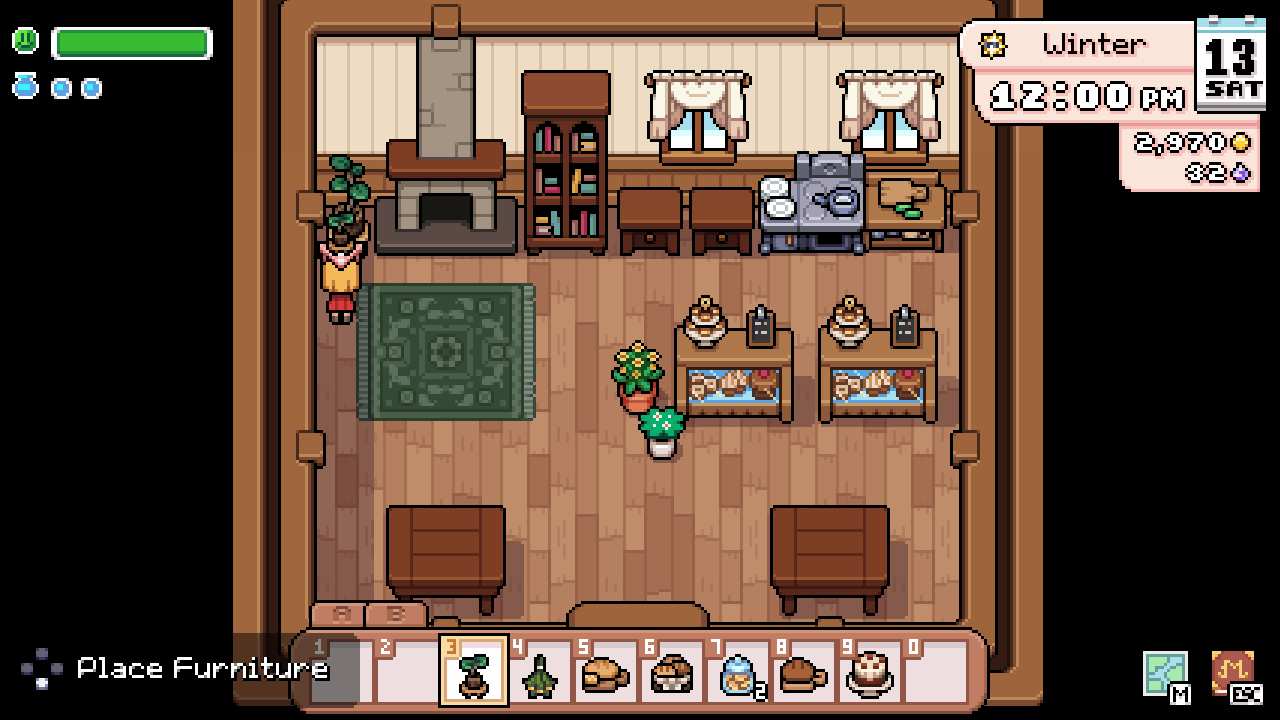
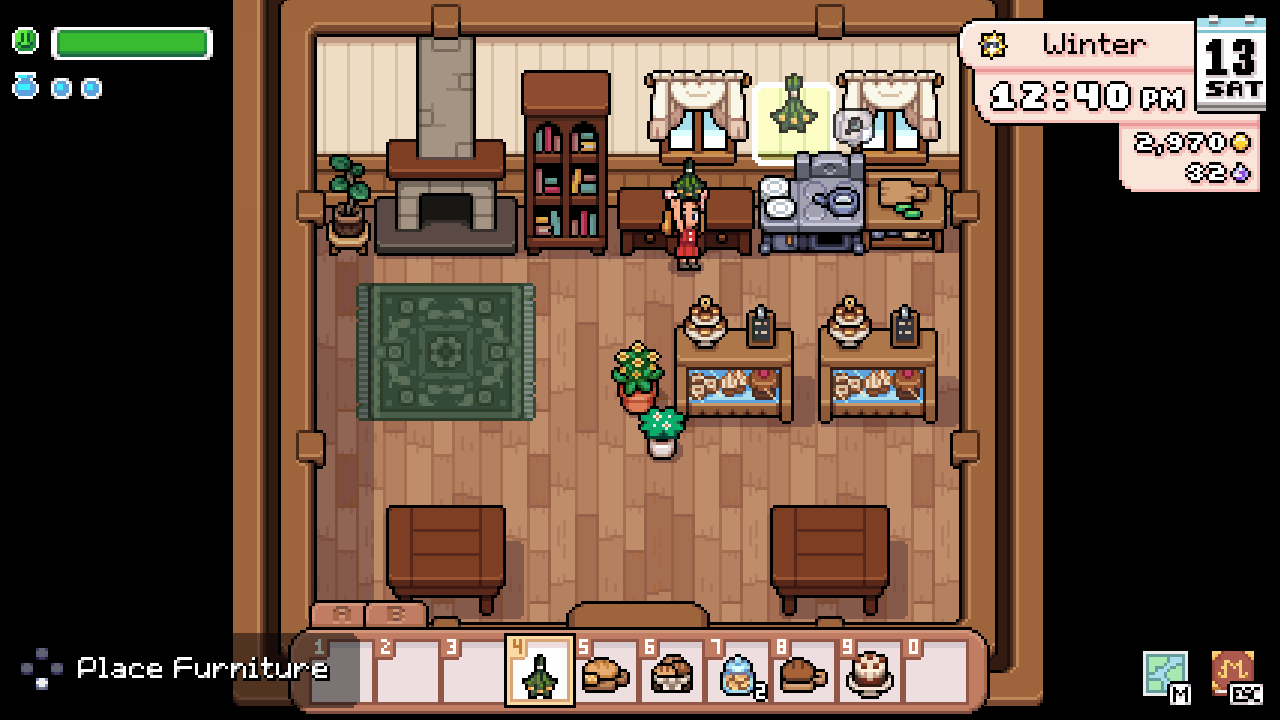
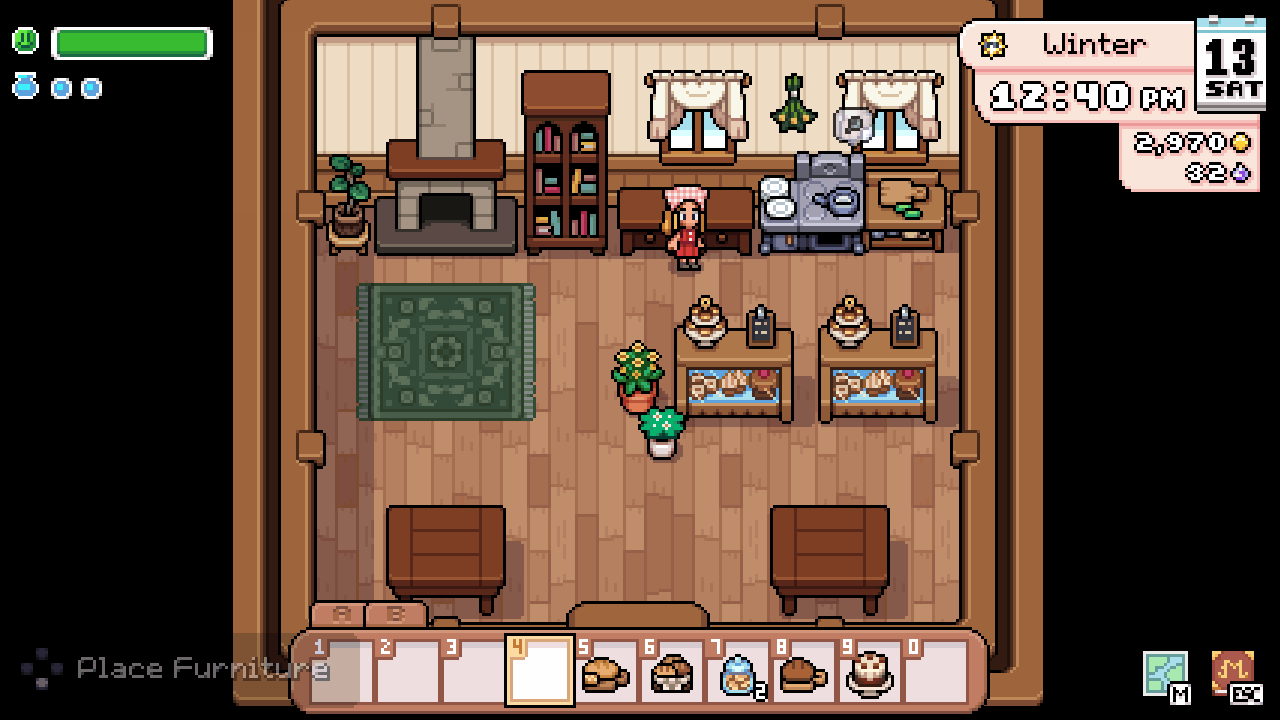
From an empty spot to a placed wall decoration
The three frames show the same spot between two windows: empty, highlighted preview, then the decoration remaining after placement. Floor counters below it are a different layer from another wall decoration; this arrangement does not demonstrate stacking two wall items.
Pick up a wall item hidden behind furniture
You relocate furniture by picking it up with the pickaxe and placing it again. Keep free inventory space so you can collect each piece before continuing.
- Equip the pickaxe and aim at the object you want to remove. On keyboard and mouse, use the target outline to check which piece is selected before left-clicking; on a controller use your Use Tool binding.
- If a counter, table or other foreground piece is selected instead, move that piece aside first. Collect it immediately and clear a route to the wall.
- Stand closer to the exposed wall item, target it with the pickaxe and use the tool. Pick up the dropped decoration; hitting it and collecting it are separate steps.
- Select the recovered decoration, position it and place it again. Return foreground furniture last, then check that you can still walk up to the wall area.
Why an empty-looking wall can reject a decoration
The visible artwork does not show the whole occupied area. In the base game, wall decorations cannot be freely layered above and below one another in the same wall position. Moving a preview upward is not an unrestricted height or overlap setting.
| What happens | What to do next |
|---|---|
| Lights will not fit above a picture or fireplace | Try a separate horizontal wall position. If it fits there, keep the two wall pieces apart; a gap in the artwork does not guarantee a free placement area. |
| The same item will not place even on an empty wall | Check that it is finished wall furniture, select it again and try another free wall section. Wallpaper and recipe scrolls are different items. |
| The bed, lamp or chest reacts instead | Move your character away from the interactive object. With a controller, use the right stick to move the furniture preview back toward the wall. |
| The pickaxe targets the wrong furniture | Remove and collect the foreground piece, approach the wall and retarget the decoration. Restore the foreground piece only after finishing. |
| The decoration drops but does not enter your bag | Free an inventory slot and clear the approach to the dropped item. Walk close enough to collect it before placing anything back. |
Place one test item before crafting a roomful
Start with one map, light or garland on a clear wall. Check its appearance, supported orientation and removal before crafting duplicates. Put larger furniture back only after finishing the wall arrangement, leaving room to reach objects you expect to move again.
If an item still cannot be targeted on an unobstructed wall, keep your save and record the item’s exact name, version, platform and control layout for support. A custom-layout or furniture mod may have different placement rules from the base game.
REFERENCE NOTES
Sources and notes
Dates, platforms, and version details can be checked in the official references; character, gift, item, and route notes are organized here.
View sources
- Supplementary referenceControls Requirements and game mechanics.
- Supplementary referenceFarm Requirements and game mechanics.
- Supplementary referenceCrystal Wall String Lights Requirements and game mechanics.
- Supplementary referenceEssence Bat Garland Requirements and game mechanics.
- Supplementary referenceQuests Requirements and game mechanics.
- Supplementary referenceMistria Wall Map Requirements and game mechanics.
- Official referenceNPC Studio — Press Kit Furniture controls, pickup and placement examples; community reports describe placement conflicts.
- Tool referenceJaviHerobrine — How to Move Furniture (0:26–1:10) Furniture controls, pickup and placement examples; community reports describe placement conflicts.
- Tool referenceWall decor placement? Furniture controls, pickup and placement examples; community reports describe placement conflicts.
- Tool referencePlacing furniture around interactable objects Furniture controls, pickup and placement examples; community reports describe placement conflicts.